> ## Documentation Index
> Fetch the complete documentation index at: https://docs.databunker.org/llms.txt
> Use this file to discover all available pages before exploring further.
# Generate admin credentials
> This page explains the steps needed to set up Databunker Pro for the first time.
## Before you start
To complete this guide, you'll need:
* Databunker Pro installed
* *(Optional)* A Databunker Pro License Key.
Automating your deployment? You can complete this setup over the API without a browser — see [Unattended installation](/pro/installation/unattended-installation).
## Copy the generated access code from the logs
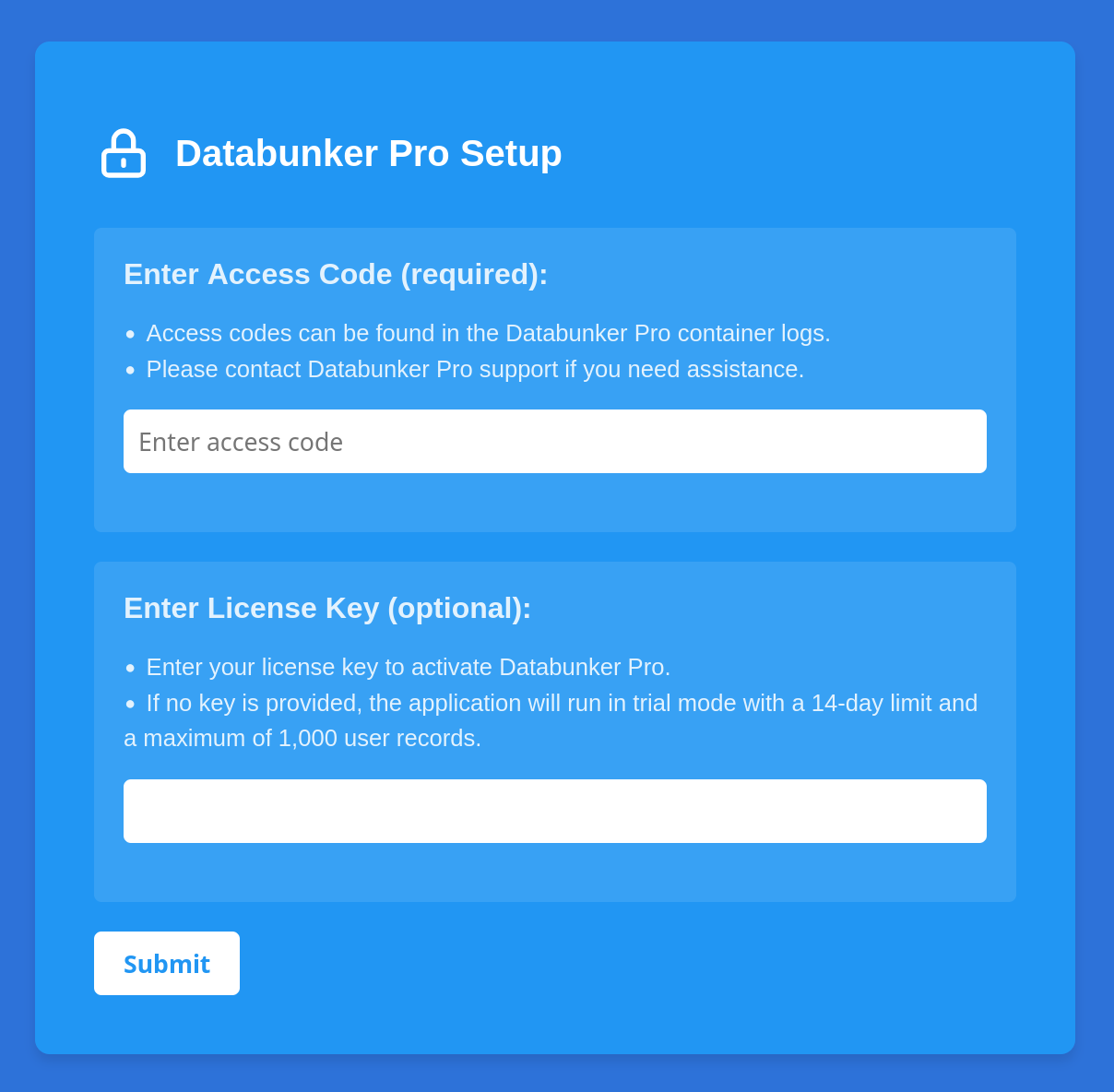
When Databunker Pro starts for the first time, it generates a six-digit access code and outputs it to the service logs.
For example, if you deployed Databunker Pro on Kubernetes, you can print the access code with the following command line:
```sh theme={null}
kubectl logs deployment/databunkerpro | grep "Access code"
```
## Complete the setup in your browser
To complete the setup, you'll need access to the Databunker Pro web interface from your browser.
By default, the web interface is exposed on port 3000.
[Book a call](https://cal.com/databunker-team/30min) to purchase a license key, or leave empty to run Databunker Pro in Trial mode.
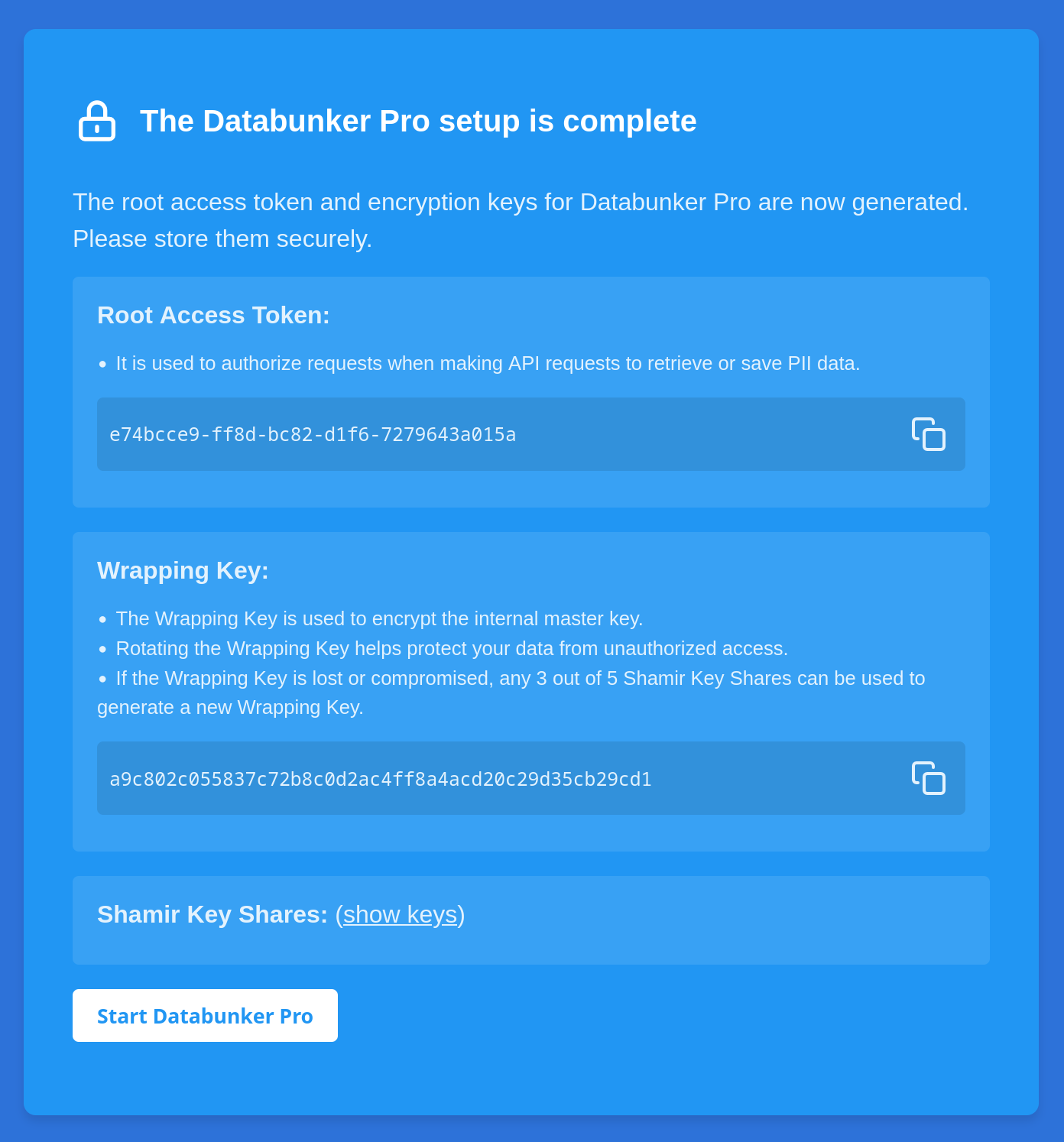
 Copy the following secrets from the page and store them securely:
* Root Access Token
* Wrapping Key
* Shamir Key Shares
Copy the following secrets from the page and store them securely:
* Root Access Token
* Wrapping Key
* Shamir Key Shares
 Finally, click **Start Databunker Pro** to start the service.
Databunker Pro is now running and ready to use. Next, learn how to issue scoped credentials in the [Authentication reference](/pro/api/authentication).
Finally, click **Start Databunker Pro** to start the service.
Databunker Pro is now running and ready to use. Next, learn how to issue scoped credentials in the [Authentication reference](/pro/api/authentication).